Getting around
Getting around
What this is for — signing in, finding your way around the screen, and knowing which parts of the system you can see.
Signing in
- Go to the web address the office gave you and you land on the sign-in card.
- Type your Email and Password, then click Sign in.
- You land on the Dispatch Board. Drivers land on My schedule.
First time — creating your account
You cannot create an account on your own. An Executive has to add your email first (see 17 — Users, roles and permissions).
- Click Invited? Create your account under the sign-in button.
- Fill in Your name, Email and Password, then click Create account.
- Use the exact email the office invited. Any other email is turned away with "This email hasn't been invited yet."
- Passwords need at least 8 characters.
Drivers have one extra step: after signing up, an Executive has to switch the account on and connect it to the driver record. Until then the driver sees "Almost there" instead of a schedule.
The left menu
The dark strip down the left is the menu. It is grouped:
- Overview — Executive Dashboard
- Operations — Dispatch Board · Scheduling · Customers
- Fleet — Drivers · Vehicles
- Partners — Facilities · Brokers
- Business — Receivables · Reports · Progress & results (Executive accounts only)
- Admin — Users & roles (Executive accounts only)
Your name, your role, and a Sign out button sit at the bottom.
Progress & results is different from the other items: it does not open inside the CRM. It opens Heart of Gold's progress report in a new browser tab, and the small arrow-out-of-a-box icon beside its name is the reminder. Close that tab to come straight back to the CRM. Only Executive accounts see it.
Drivers see a much shorter menu — just My schedule.
Making the menu narrow
- Click the arrow button at the top of the menu, next to the Heart of Gold logo.
- The menu shrinks to icons only, giving the dispatch board more room.
- Click it again to bring the words back.
The system remembers your choice on that computer or tablet. Phones start with the menu already collapsed.
Making everything fit on a smaller screen
On a laptop, a wide table — Customers, Receivables — can be wider than the screen. Those tables scroll sideways inside their own box, so the last column is always reachable: scroll right within the list (two fingers sideways on a trackpad).
To see more at once rather than scrolling, zoom the page out. That makes everything smaller so more of it fits, the same way lowering a monitor's resolution does.
On a Mac: hold ⌘ (Command) and press − to zoom out. Press it again for smaller still. ⌘ 0 puts it back to normal. (⌘ + zooms in.)
On Windows: hold Ctrl and press −. Ctrl 0 resets.
Your browser remembers the setting for this site and for that computer, so your laptop can sit at 80% while the office screen stays at 100% — you only set it once on each machine.
If you'd rather not zoom, collapsing the left menu (above) also buys back room.
The bar across the top
- Sacramento / Fresno — the location switch. Everything below it changes: the board, the client list, the drivers, the vans, the reports.
- Today's date.
- Search trips, clients… — the search box. See 19 — Searching.
- The bell — callbacks that are overdue, and driver sign-ups waiting to be switched on.
If your account is limited to one location, the switch does not appear and you stay on your location.
The bell
The bell at the top right collects three kinds of things that need someone's attention. A red number on it means at least one of them is waiting.
- Click the bell to see the list.
- Alerts (at the top, in red) — things that happened while you may not be looking at the right screen. Today that means a driver cancelling a trip from their phone; more kinds will be added. New alerts are in bold. Click one to open that trip on the dispatch board — it switches to the right location and day for you. Mark all read clears the bold on all of them.
- Drivers waiting for activation — Executives only. Click one to go straight to Users & roles.
- Waiting on callback — people who said they'd call back and haven't, past their follow-up date. Open the callback list → at the bottom takes you to the full list.
When a new alert arrives while the app is open, you hear one short beep and a small card appears under the bell with what happened — for example "Tony Ballard canceled the ride". Click Open to go to the trip, or × to close the card. It closes by itself after 20 seconds, and the alert stays in the bell either way.
Good to know:
- Dispatchers and Executives see driver-cancel alerts. Billing, intake and driver accounts don't.
- You only see alerts for the locations your account can see.
- The beep only plays after you've clicked somewhere in the app once — web browsers don't allow a page to make a sound before that. The card still appears.
- An alert disappears for everyone once the trip it points to has been dealt with — for a driver cancel, that is when someone clicks Confirm price or Done on the amber band in the trip panel (see 06 — Trip details). Alerts older than two weeks drop off the list.
- The number counts down on its own as alerts are read and callbacks are booked, snoozed or closed.
Who can see what
- Executive — everything, including Users & roles and downloading data.
- Dispatcher — the board, booking, clients, receivables, reports; can record payments and (by default) change trip prices.
- Intake — the front desk: booking, clients, the board.
- Billing — receivables, payments, prices, reports, and the board.
- Driver — their own schedule only. No client list, no board, no search.
An Executive can change most of this in Users & roles → Permissions, so what your account can do may differ from the list above.
The Help bubble — ask the system a question
A round Help button sits at the bottom-right of every screen. It answers from this manual, in plain language, and it is the fastest way to find out how to do something without waiting for anyone.
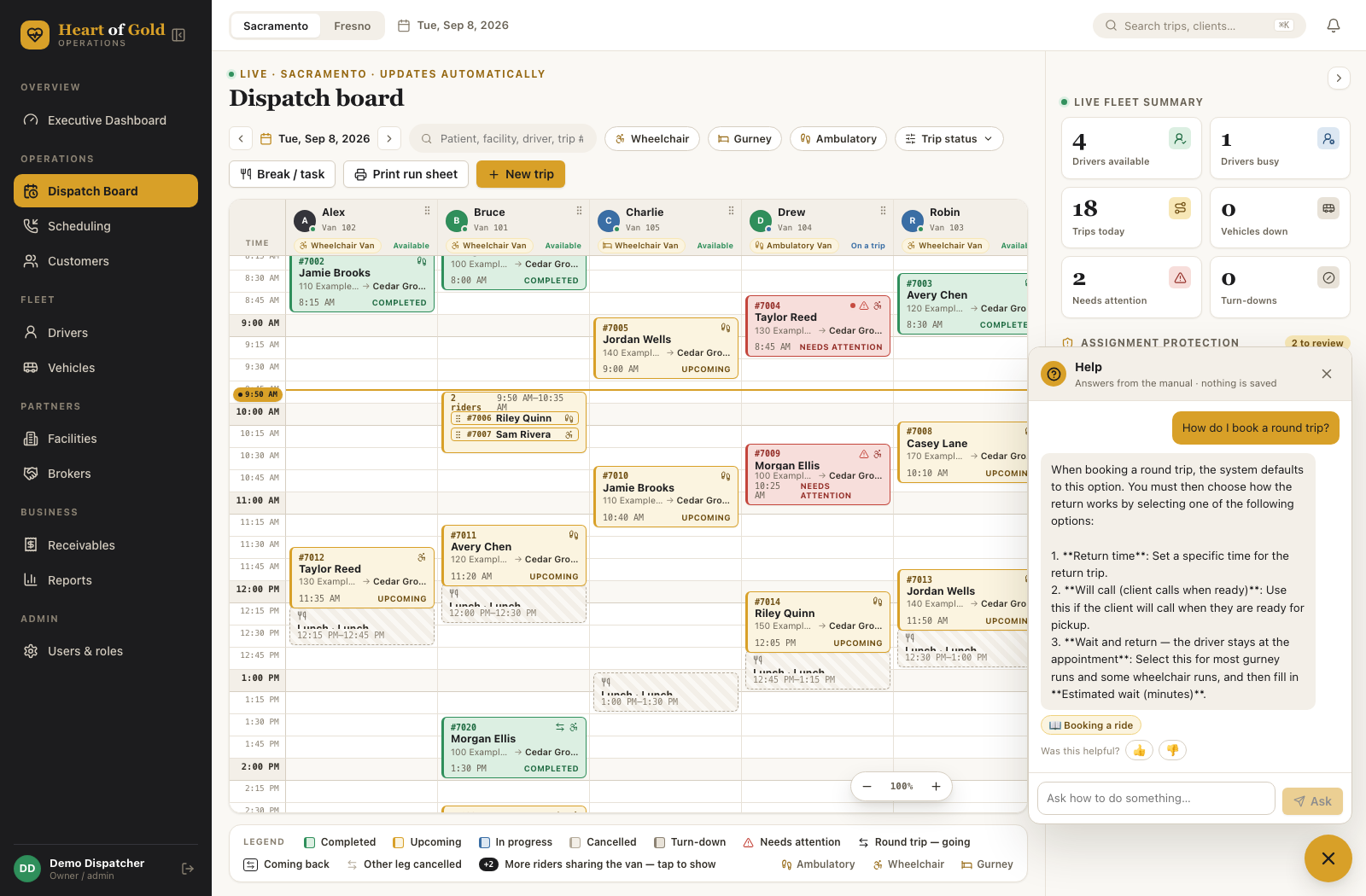
- Click it to open the Help panel.
- Type a plain question — "how do I mark a trip as paid?", "how do I cancel just one trip in a series?" — and press send.
- The answer comes from this manual, with links to the pages it used. Nothing you type is saved between questions.
- If the manual doesn't cover it, you're offered a one-sentence summary of your question to send to the developer as a request. Check it, fix it if it's not quite right, then send — or click Never mind.
- If it says "Help is offline right now — please contact the developer", the answer service isn't reachable. Everything else in the system carries on working normally.
- If it says "Sorry — I couldn't put an answer together just then. Please ask me again", nothing is wrong with your question. Ask it again and it will normally answer straight away.
What it does and doesn't do
- It answers only from this manual. If something isn't written here, it says so rather than guessing.
- You can ask in Spanish. Type the question in Spanish and the answer comes back in Spanish. Button and screen names stay in English, because that is how they appear on screen.
- It does not look at trips, clients or money. Don't type patient names or medical details into it — it doesn't need them, and it doesn't keep them.
- It keeps no record of your questions between one question and the next.
- Anything you send as a request goes to the developer as a short note for review — it does not change the system by itself.
If something looks wrong
- "Wrong password for this email." — the email is right, the password isn't. Ask an Executive to set you a temporary password under Users & roles (see Someone forgot their password in the Users, roles and permissions page).
- "No account with that email yet" — you have not created your account yet. Use Invited? Create your account.
- "This email hasn't been invited yet." — the office has to add your email under Users & roles before you can create an account.
- "That email already has an account." — switch to Sign in. If the password is forgotten, an Executive can set a temporary one under Users & roles.
- "We couldn't sign you in" / "We couldn't create the account" — check the email and password (8 characters or more). If it keeps happening, ask the office to check your account under Users & roles.
- A column is cut off / the page doesn't fit / I can't see the right-hand side — scroll sideways within the list itself; wide tables scroll inside their box. To fit more on screen instead, zoom out with ⌘ − on a Mac (Ctrl − on Windows); ⌘ 0 resets it. See Making everything fit on a smaller screen above.
- Everything is too big or too small — same thing: ⌘ − and ⌘ + on a Mac, Ctrl − and Ctrl + on Windows. The browser remembers it per computer.
- A menu item is missing — that part of the system is not open to your account type. Ask an Executive.
- The numbers look like the wrong city — check the Sacramento / Fresno switch at the top.
- "This account isn't active yet" — either you are a new driver waiting for the office to approve your account, or your access was switched off. Ask an Executive to enable you in Users & roles.