Drivers
Drivers
What this is for — the roster: who drives, which van they take, when they're off, and who is covering the other location.
Where to find it
Left menu → Fleet → Drivers. The list shows the drivers for the location selected in the top bar.
The roster
Columns: Driver, Phone, Usual vehicle, Gurney certified, Schedule, Status, Notes.
- Inactive drivers sink to the bottom of the list.
- The Schedule column shows their weekly days off, any upcoming time off in amber, and a gold badge when they're covering the other location ("In Fresno until 8/14").
- Status is Active, Off today, or Inactive.
Steps — adding a driver
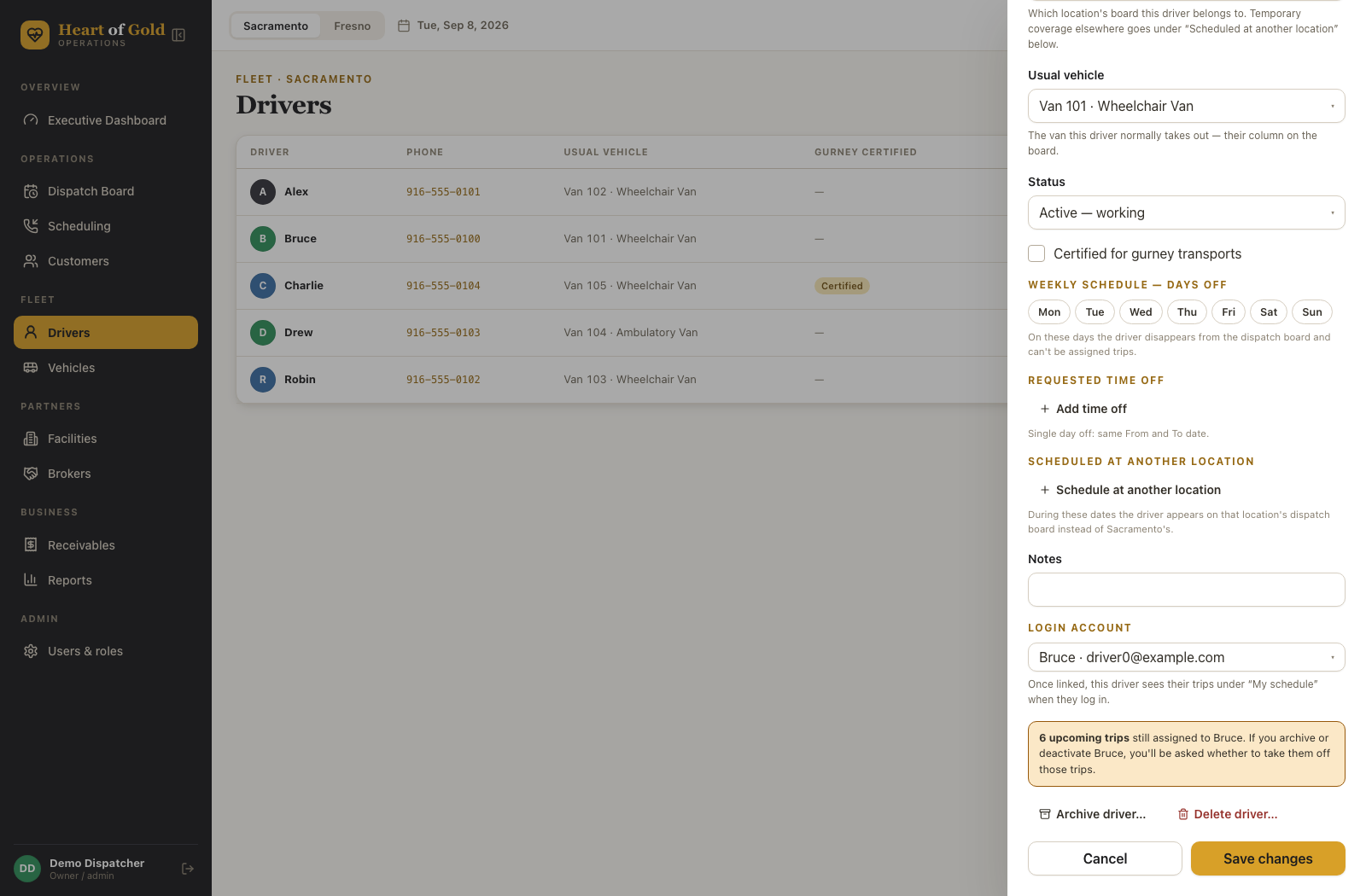
- Click Add driver.
- Name — required. Phone, Email.
- Home location — which location's board they belong to.
- Usual vehicle — the van they normally take. This is what shows in their column header on the board. This changes the driver's usual van for every future booking. For one trip only, don't change it here — open that trip and use Reassign instead; see 06 — Trip details, Steps — assigning or changing the driver and van on one trip.
- Status — Active — working, Off — not driving today, or Inactive — no longer with us.
- Tick Certified for gurney transports if they are.
- Notes.
- Click Add driver.
Click any row to edit, then Save changes.
Steps — weekly days off
- Open the driver.
- Under Weekly schedule — days off, click the days they never work: Mon Tue Wed Thu Fri Sat Sun.
- Click Save changes.
On those days the driver has no column on the dispatch board and cannot be given trips.
Steps — time off
- Open the driver → Requested time off → Add time off.
- Set From and To. For a single day, use the same date in both.
- Reason — Vacation, Dentist…
- Choose the kind:
- All day left ticked — the driver disappears from the board for those days.
- All day unticked — fill in Off from and Back at. The driver stays on the board and just that stretch is blocked off, shown as a Time off block on their column.
- Click Save changes.
If the dates you just added or extended already have trips assigned to this driver, a box appears headed Where should these trips go? It tells you how many trips are involved and gives you two buttons:
- Move trips to Unassigned — the recommended choice. The trips go to the Unassigned list at the top of the right-hand panel on the dispatch board, where anyone can see them and drag them to another driver.
- Keep them on [driver] — nothing changes. The trips stay booked with this driver.
Either way nothing is lost: a trip kept on the driver now shows in the Unassigned list anyway, tagged DRIVER OFF — REASSIGN, so it can't drop out of sight (05 — The dispatch board). Trips outside the time-off dates are never touched, and the box doesn't appear at all if there's nothing assigned during that stretch. Shortening or leaving a time-off window unchanged never asks — only a new or widened one does.
If some of those trips have this driver as the second driver, the box says so. Moving those leaves the main driver and the trip's place on the board exactly as they are — only the second driver comes off.
Use the bin icon on a row to remove time off. Clicking a Time off stripe on the dispatch board brings you straight here, scrolled to this section.
Steps — covering the other location
- Open the driver → Scheduled at another location → Schedule at another location.
- Pick the Location, then From and To dates.
- Click Save changes.
During those dates the driver disappears from their home board and appears on the other location's board, with a small Sac or Fresno tag on their column so nobody gets confused. Booking, the run sheet and the driver lists all follow the trip date.
Trips left at home. If the driver still has trips booked at their home location for those dates, nothing is moved. Each one shows on the home board's Unassigned list with an amber DRIVER AWAY IN FRESNO — REASSIGN tag (or IN SACRAMENTO) and the driver's name, so it cannot go missing.
- Open Dispatch at the home location on one of those dates.
- Find the amber-tagged trips in the Unassigned — drag to a driver list.
- Drag each one onto another driver's column.
Trips at the location they are visiting show on their column there as usual.
Steps — connecting a driver's login (Executive only)
- Invite the driver's email in Users & roles and have them create their account — see 17 — Users, roles and permissions.
- Open the driver here.
- Under Login account, pick their user from the list.
- They now see their trips under My schedule when they sign in.
Until this is done, the driver's record reads "Not linked — driver can't log in yet" and they see "Almost there" in the app.
Steps — archiving someone who left (Executive only)
- Open the driver. If they still have upcoming trips, a yellow note at the bottom of the record says how many.
- Click Archive driver… and confirm.
- If they have upcoming trips, the Where should these trips go? box appears. Move trips to Unassigned (recommended) sends them to the Unassigned list on the board for reassigning; Keep them on [driver] leaves the assignments alone — the trips then show a DRIVER OFF ROSTER tag in the Unassigned list until someone reassigns them.
- They leave the roster and every assignment list, but their record and full trip history are kept.
 5. To bring them back, scroll to the Archive section at the bottom of the
page and click Restore.
Delete driver… also exists, but only works for someone with no trip history — it is for cleaning up a mistyped record. Anyone who actually drove should be archived.
Good to know
- Off today is for a one-off; Inactive is for someone who no longer works here; Archive takes them off the roster entirely. Setting someone to Inactive asks the same Where should these trips go? question about their upcoming trips as archiving.
- Taking a driver off for a whole day never hides their trips any more. Whether you move them to Unassigned or keep them on the driver, they stay listed in the Unassigned panel on the dispatch board until someone reassigns them.
- Changing a driver's usual van here changes their column on the board. You can also swap it for the day straight from the column header.
- Two drivers set to the same van show Van taken in red on the board.
- Gurney certification is recorded here; gurney trips also need a second driver on the trip itself.
- Adding and editing drivers is open to Executive, Dispatcher and Intake accounts. Linking logins, archiving and deleting are Executive only.
If something looks wrong
- A driver isn't on the board — check: weekly day off, all-day time off, status Inactive, or a stint at the other location.
- A trip went missing after a driver was taken off for the day — it is in the Unassigned list on the dispatch board, tagged DRIVER OFF — REASSIGN. Drag it to another driver.
- "Couldn't delete this driver" — they have trips on record. Archive them instead.
- An office person wants to see the driver view — an Executive or dispatcher who sometimes drives can be linked to a driver record the same way; My schedule then appears at the bottom of their menu.
- A driver can't see their schedule — their login isn't connected to this record, or the account hasn't been switched on in Users & roles.
- Time off didn't block anything — a partial day needs both Off from and Back at, with the end after the start; otherwise it falls back to all day.
- A driver is missing from this list entirely — check the location switch, then the Archive section at the bottom.
- Trips a driver was assigned vanish when they're made inactive — those trips keep the driver and lose their column. Reassign future trips before making someone inactive or archiving them.