Vehicles
Vehicles
What this is for — the vans: what each one can carry, where it sleeps, and whether it's in service.
Where to find it
Left menu → Fleet → Vehicles. The list shows the vans for the location selected in the top bar.
The list
Columns: Vehicle, Type, Plate, Seats, Wheelchair, Gurney, Status, Kept at, Notes.
- Wheelchair shows Lift-equipped or Ramp-equipped.
- Status is In service, Maintenance, or Unavailable.
- A gold badge under the status shows when the van is on loan to the other location.
Steps — adding a van
- Click Add vehicle.
- Fleet # — required, e.g. 110. This is the number everyone uses.
- Type label — e.g. Wheelchair Van.
- License plate and Passenger capacity (seats in total). 4b. Wheelchair spots and Gurney spots — how many can ride at once. Leave blank for 1 when the matching box below is ticked. These are what the system checks when two riders share the van.
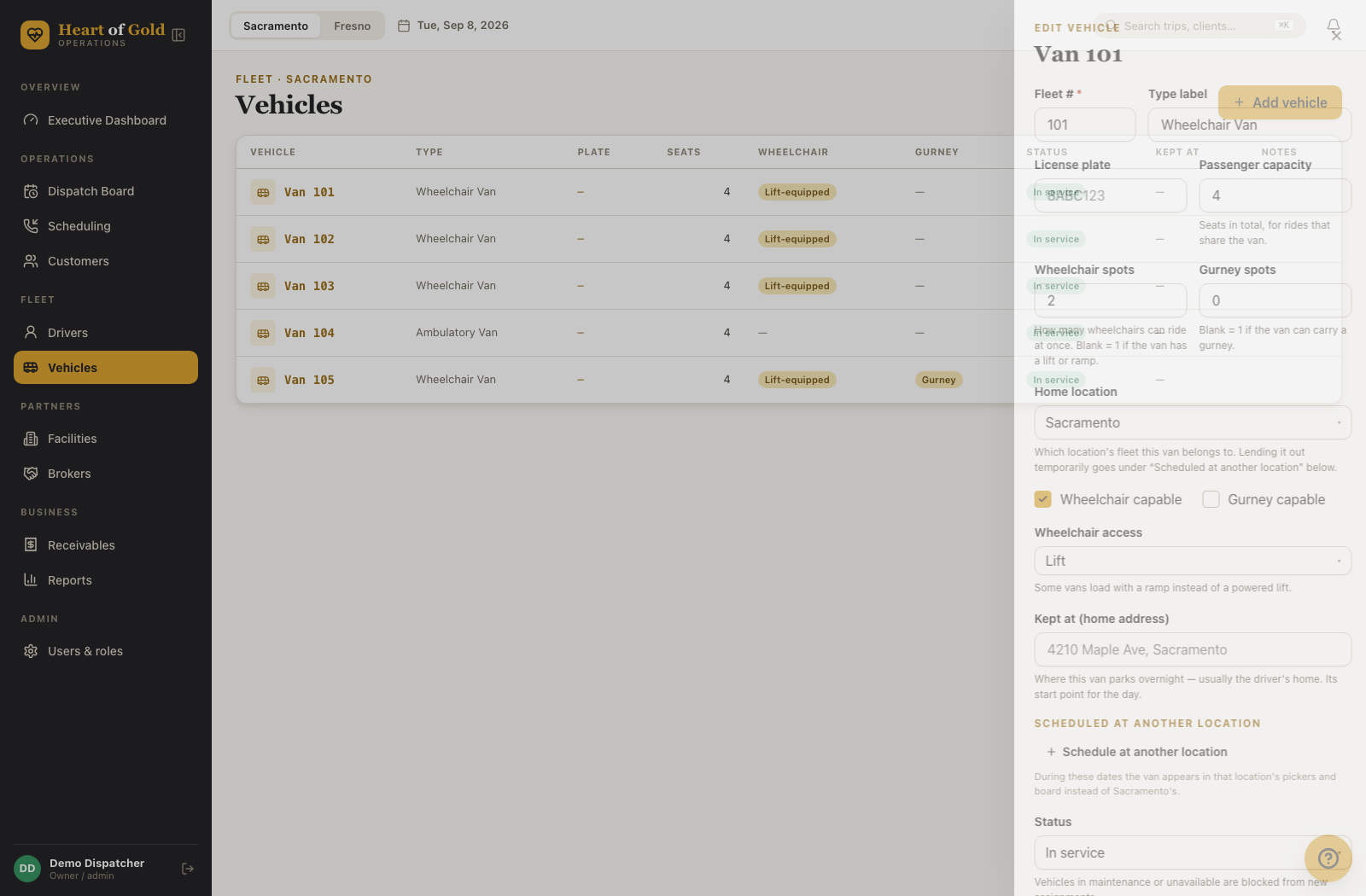 5. Home location — which location's fleet it belongs to.
6. Tick Wheelchair capable and/or Gurney capable.
7. If wheelchair capable, choose Wheelchair access: Lift or Ramp.
8. Kept at (home address) — where the van parks overnight, usually the
driver's home. It is the van's start point for the day.
9. Status.
10. Notes.
11. Click Add vehicle.
Click any row to edit, then Save changes.
Steps — lending a van to the other location
- Open the van → Scheduled at another location → Schedule at another location.
- Pick the Location, then From and To.
- Click Save changes.
During those dates the van appears in the other location's lists and on its board instead of its own.
Steps — taking a van out of service
- Open the van.
- Set Status to In for maintenance or Unavailable.
- Click Save changes.
A van that isn't In service is blocked from new assignments, and its driver's column on the board shows a red Maintenance dot.
Steps — archiving a sold or retired van (Executive only)
- Open the van.
- Click Archive vehicle… and confirm. If the van is still on upcoming trips, a yellow note says how many, and you are asked whether to clear the van from those trips now (the drivers stay on them). If you keep it, those trips show a red van archived warning until they get another van. Marking a van Unavailable asks the same question. 2b. The van also stops being anyone's usual van, so it no longer prints on run sheets or column headers.
- It leaves the fleet list and every booking choice; the record and all its trips are kept.
- To bring it back, use the Archive section at the bottom of the page and click Restore.
Delete vehicle… only works when no trip references the van — it is for cleaning up duplicates. A sold van should be archived.
What the board checks
When you drag a trip onto a driver's column, the van has to be able to take it:
- A wheelchair trip needs a van marked wheelchair capable — otherwise the reason reads "Van 110 has no lift or ramp."
- A gurney trip needs a van marked gurney capable.
- The van has to be In service.
Columns that fail go grey while you drag; hover for the reason.
"Van taken"
If two drivers are set to the same van on the same day, both column headers show Van taken in red. Change one driver's van — either in the column header on the board, or on the driver's record — so the fleet reads honestly.
Assigning someone else's van from the trip panel also warns you: "Van 110 is Dave's van — Dave will show 'Van taken' on the board until they get another one."
Good to know
- Kept at is where the van lives, not where the company is. It is normally a driver's home address.
- Some vans load with a ramp rather than a powered lift — the choice shows everywhere a van is picked.
- Vans are per location; check the Sacramento / Fresno switch if one seems missing.
- Adding and editing vans is open to Executive, Dispatcher and Intake accounts. Archiving and deleting are Executive only.
If something looks wrong
- A van isn't in the list — check the location switch, then the Archive section at the bottom.
- "Couldn't delete this vehicle" — trips reference it. Archive it instead.
- A van can't be assigned a wheelchair trip — Wheelchair capable isn't ticked on its record.
- A van still appears on the board after it was sold — archiving hides the van from the lists but does not clear it off trips that were already assigned to it. Reassign those trips, then archive.
- Nothing saves — Fleet # is required.